The Transaction History flow enables a user to view a complete, chronological list of all transactions that have occurred during the lifetime of the account:
- Purchases for digital goods or services
- Token purchases
- Token conversions
- Payouts
- Refunds
When a user opens this page, several of their most recent transactions are displayed. They can filter their list to view either pending or completed transactions.
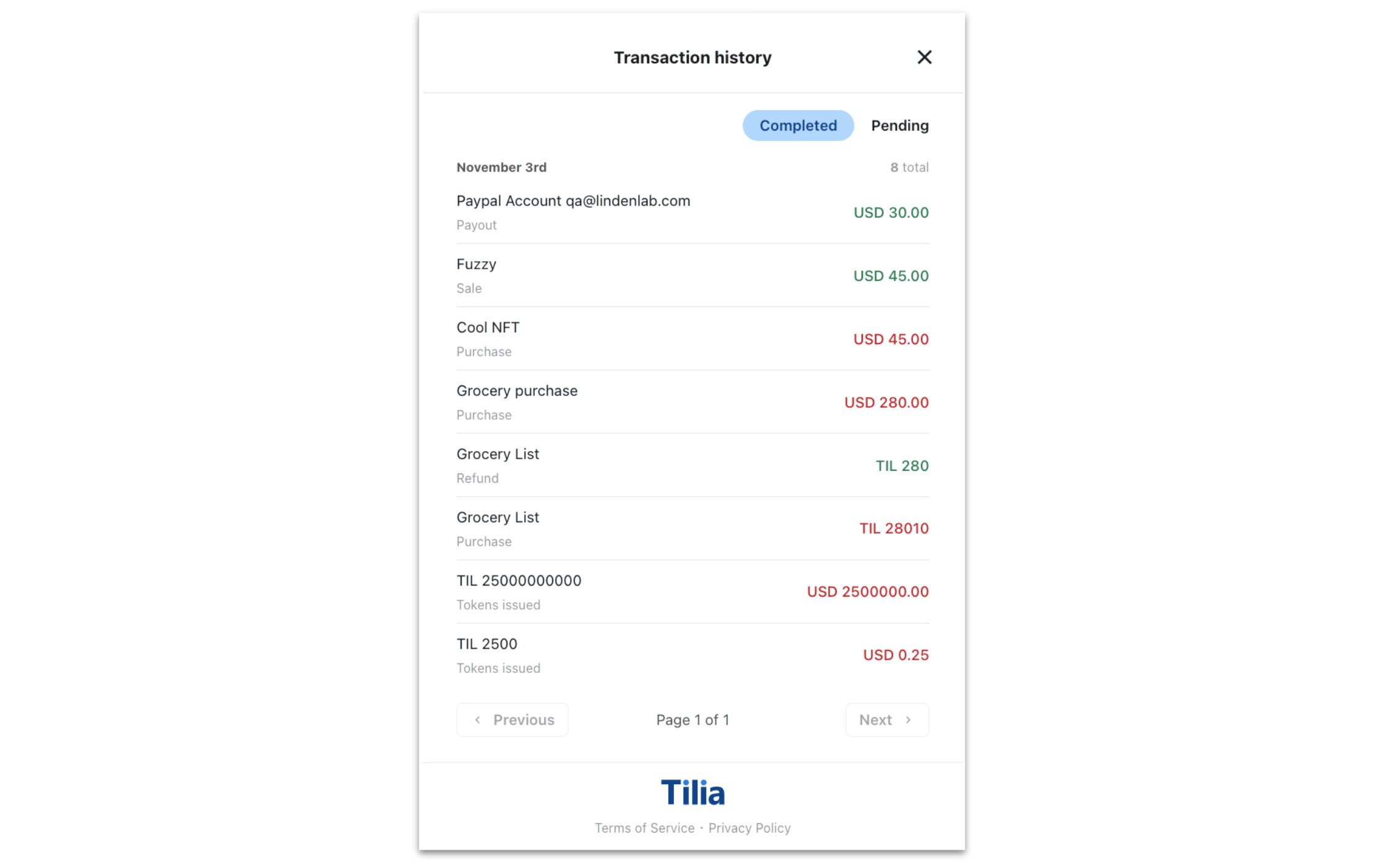
If a user clicks or taps on a specific transaction, a transaction details page appears. On this page, users can view the details of a specific transaction and request a receipt of that transaction be sent to them.
Buyers and sellers participating in the same transaction see different details:
A buyer receipt includes line items for all items that have been purchased by the specific buyer. Purchases from one or multiple sellers can appear on the buyer receipt.
A seller receipt includes line items for all items that have been sold to a buyer. Only items sold by the seller to the specific buyer appear on the seller receipt.
This flow begins with a check for a signed TOS. If one has not been signed, a TOS screen appears for a user to accept before proceeding with the flow.
| Requirement | Description |
|---|---|
| ID of the < div > element | Publisher-defined, named < div > in which the Transaction History flow will be rendered |
| Redirect URL | URL that initiates the flow. The user requesting to view the transaction history must be part of the transactions being retrieved. |
| Keys (all optional) | Values | Description |
|---|---|---|
| hideExitButtons | boolean (default: false) | Hides 'X' button where user can close out the UI. |
| hideMergedAccountSelector | boolean (default: false) | Hides the section of the UI that displays the username and the merged account selector (when applicable). |
| txnHistoryTabIndex | 0 or 1 (integer, defaults to 0 which is 'Completed') | Selects which tab ('Completed' or 'Pending') the UI defaults to showing. Use 1 to default to 'Pending'. |
| disableTxnHistoryUserFiltering | boolean (default: false) | Disables ability for user to change (or view) filter settings. |
| txnHistoryFiltersStr | comma separated string (options are: "purchase", "sale", "token_purchase", "token_convert", "payout", "refund", "deposit", "balance_transfer") | Allows setting a default search filter. |
Use the following steps to open and customize a transaction history flow in the widget:
- Copy the following code sample
window.Tilia.execute({
        rootId: "<YOUR-ELEMENT-ID>"
        flow: "txnhistory",
        redirect: "<WIDGET-REDIRECT-URL>",
        onComplete: handleComplete,
        onError: handleError,
        theme: {
            backgroundColor: "#323232",
            primaryColor: "#47CC00"
        },
        flowConfig: {} // see supported flowConfig options above
});- Replace the placeholder values (< YOUR-ELEMENT-ID > and < WIDGET-REDIRECT-URL >) with the values from the Requirements section
- (Optional) Customize the flowConfig
- (Optional) In the theme object, customize the appearance of the widget
The Transaction History flow fires the following events.
Fired when a user clicks the Close button
{
    event: "tilia.txnhistory.complete",
    flow: "txnhistory",
    source: "tilia"
}